Shorted Motherboard Repair – Dell AIO PC
A customer brought in a Dell Inspiron 5000 All-In-One PC, desperate to get it back up and running again as it was a vital part of their business office. They reported it was completely dead, no lights or noises and would not respond to the power button being pressed. We booked it in and got it onto the bench ASAP.
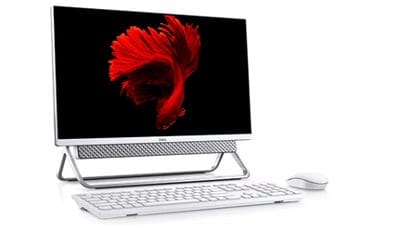
A Dell 5000 Series AIO PC
Diagnosing the issue
The first thing to try was a known-good, working power supply. These AIO computers use an external 19V power supply, similar to the ones used on Dell laptops.
We noticed immediately that the green power light on the power supply went off as soon as we plugged the DC plug into the back of the computer. This would indicate an overload condition, whereby the power supply would shut itself off upon detecting a current draw that exceeded the safe limit of the supply. This is a safety feature of most good-quality external PC power supplies or laptop chargers. The overload would indicate that it’s likely a shorted motherboard.
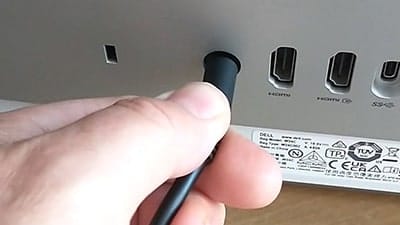
Plugging in the power supply
Opening the PC
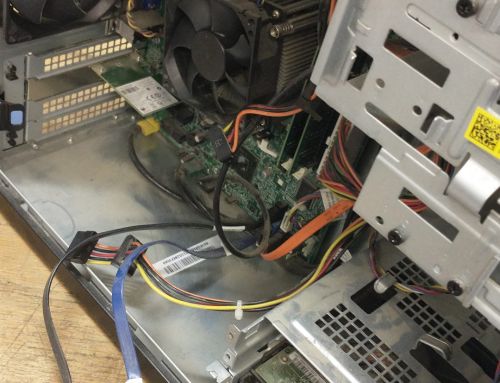
Dell is usually pretty good with providing service manuals so we first checked for and downloaded the correct manual. Of course we could probably open it without checking first but we’d rather glance through it just to make sure there aren’t any surprises or gotchas! Unlike some Lenovo All-In-One PCs, disassembly on this particular Dell Inspiron was very straightforward and within a few minutes we were ready to remove the motherboard from the back of the screen.
Testing the shorted Motherboard
Once the motherboard was removed we set the unit to one side. As we do with all PCBs (Printed Circuit Boards) we began testing the board with a multi-meter, taking measurements at various parts of the circuit. Very early on we could tell there was something wrong with the ‘protection diode’. This Schottky diode helps protect the sensitive internal circuitry from over-voltage or reverse voltage conditions, such as a power surge or using the wrong power supply (or charger, in the case of a laptop). We removed the diode from the PCB with our hot air machine (to melt the solder) and tested it again, outside the circuit to make sure that was indeed the shorted component.
Repairing the Motherboard
After finding a suitable replacement diode, it was soldered back onto the PCB before running a few more checks to ensure we couldn’t find anything else wrong with the board. Before re-installing it into the computer we applied 19 volts to the input and took some voltage measurements around the motherboard to ensure all the on-board power supplies were actually outputting their correct voltages.
Re-assembling and Testing the PC
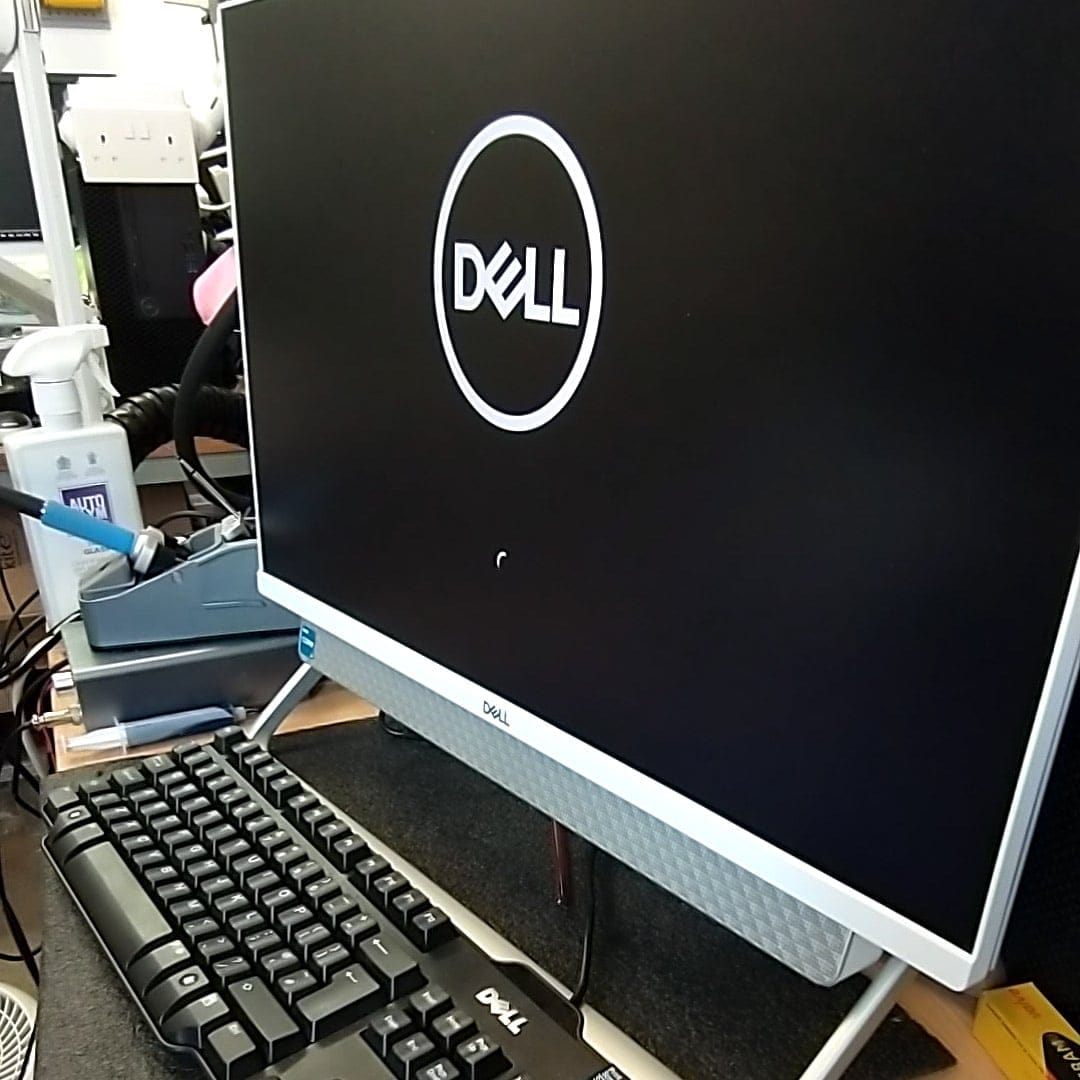
Once everything had been checked, we were confident that it would work once we got it all back together. Reassembly went smoothly and within about ten minutes were were ready for the moment of truth… We plugged in the power supply and the light on it remained solid green – a very good sign. A quick press of the power button and the computer sprang to life, with the Dell logo appearing on the screen and the Windows boot animation happily spinning around.
There’s nothing quite like bringing something like this back from the dead; it’s such a satisfying feeling. Another PC saved from the e-waste bin! Needless to say, the customer was very happy with the result.
Repair or Replace?
Out of interest we checked online to see if replacement motherboards were available for this computer. We could only find three used ones on eBay and they ranged from £180 to £210 each! Combined with our labour charge, the repair bill would have been considerably more than we charged for the motherboard repair.
You might find this interesting:
We posted a little video about this motherboard repair process here: Repairing a shorted motherboard
If you’re looking for computer repair services in Sittingbourne, we would be happy to help. Get in touch so we can give you a quote!